The application is available on multiple platforms:
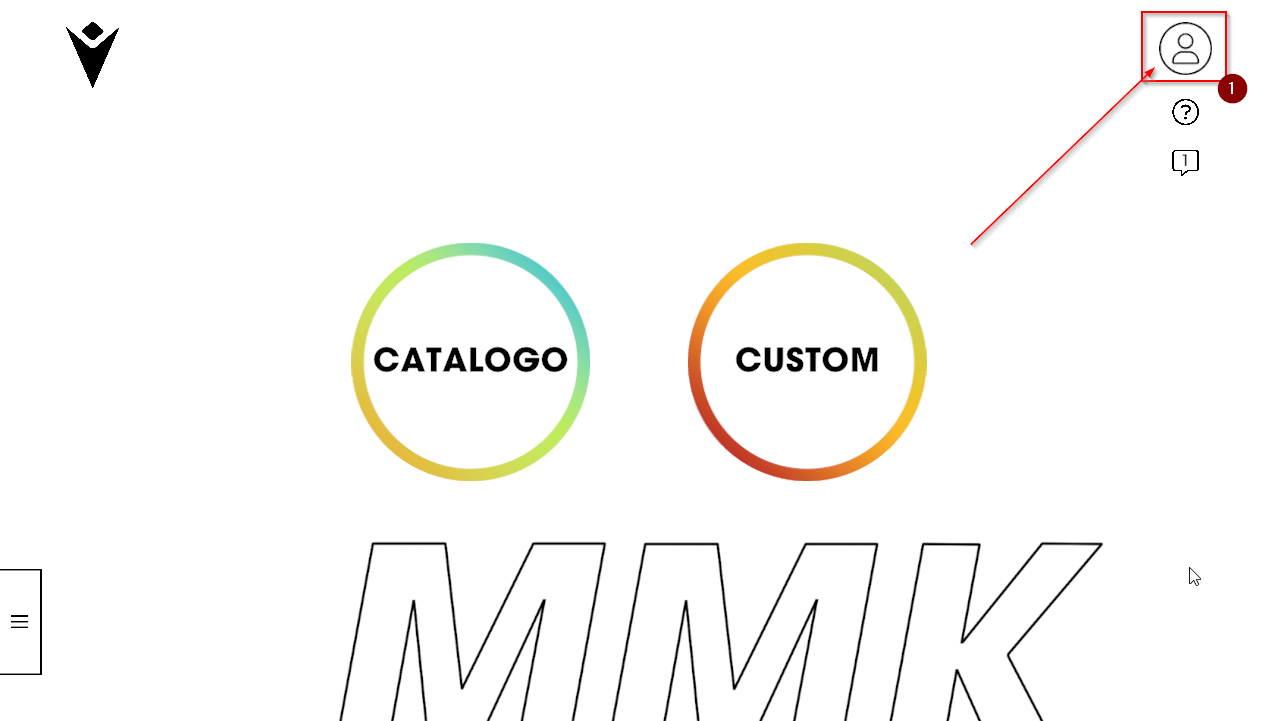
By clicking on the icon (1) at the top right shown in the screen, you can log in to your store reserved area.
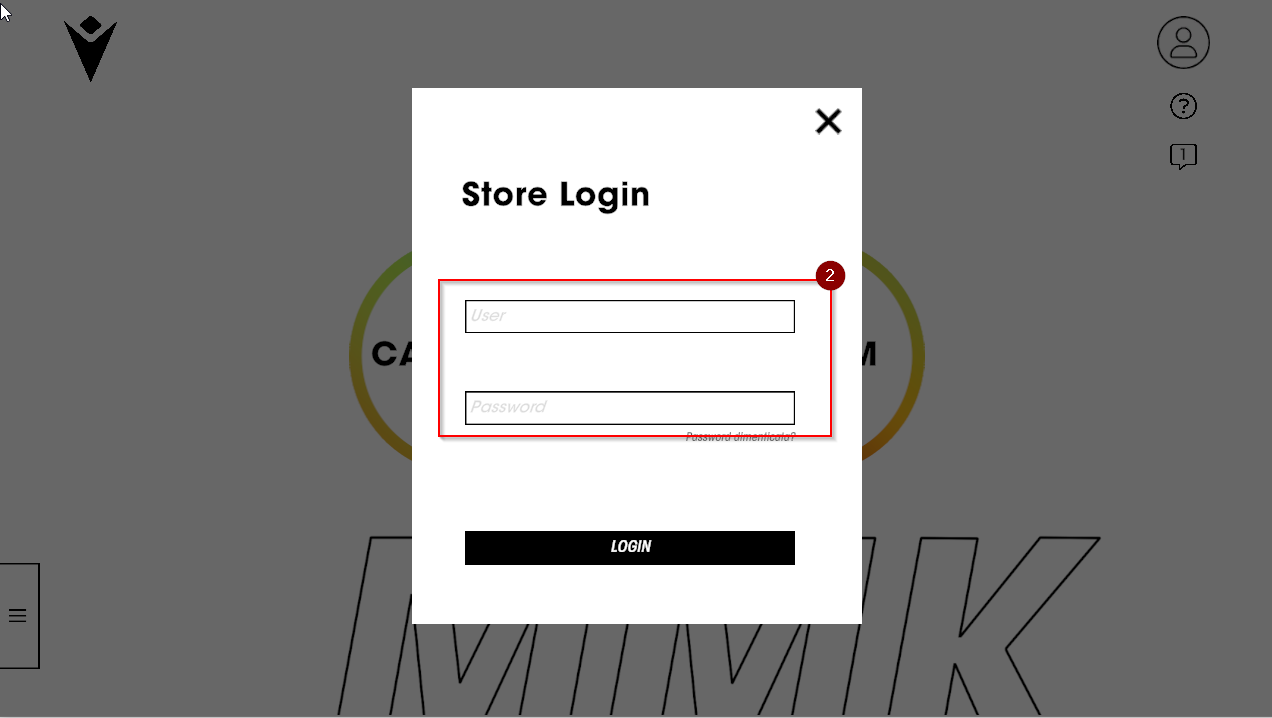
The credentials are the same used to log in to admin.macronstore.com (2).
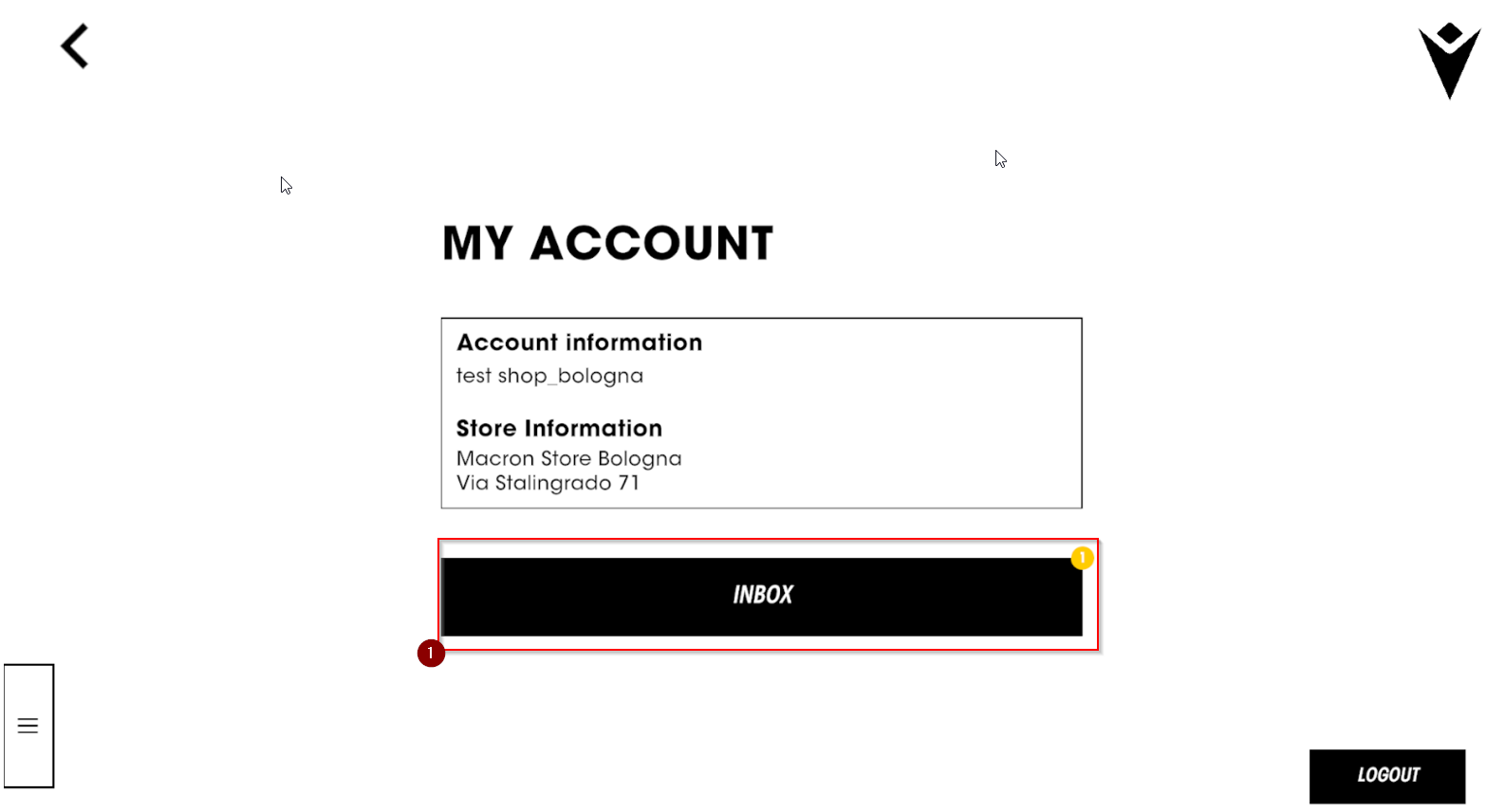
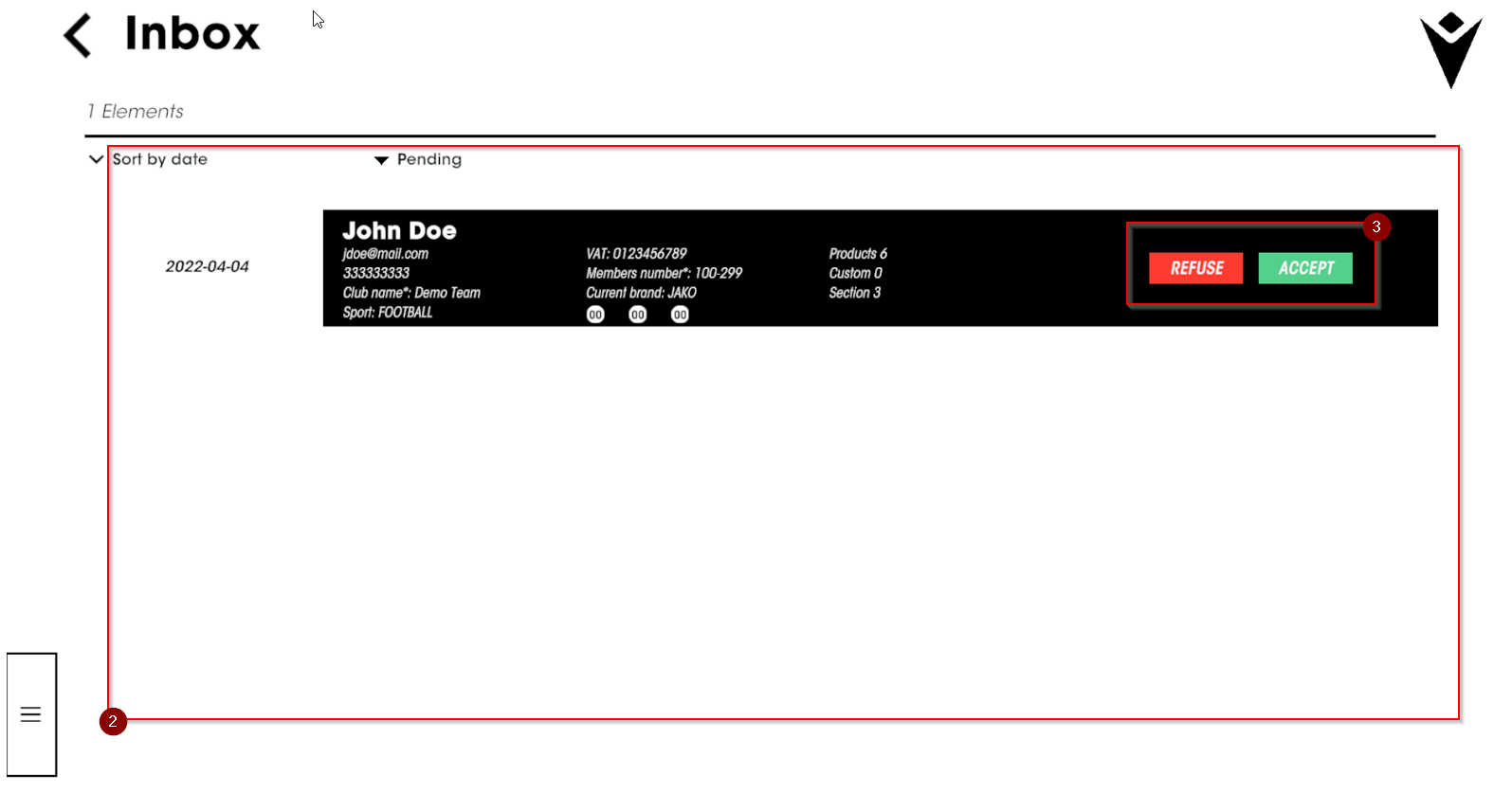
Once logged in, you can check the status of your store's inbox (1)
where you will find all the brochures sent by customers through the Store Locator (2): among these, you can decide which ones to keep in your archive or not (3)
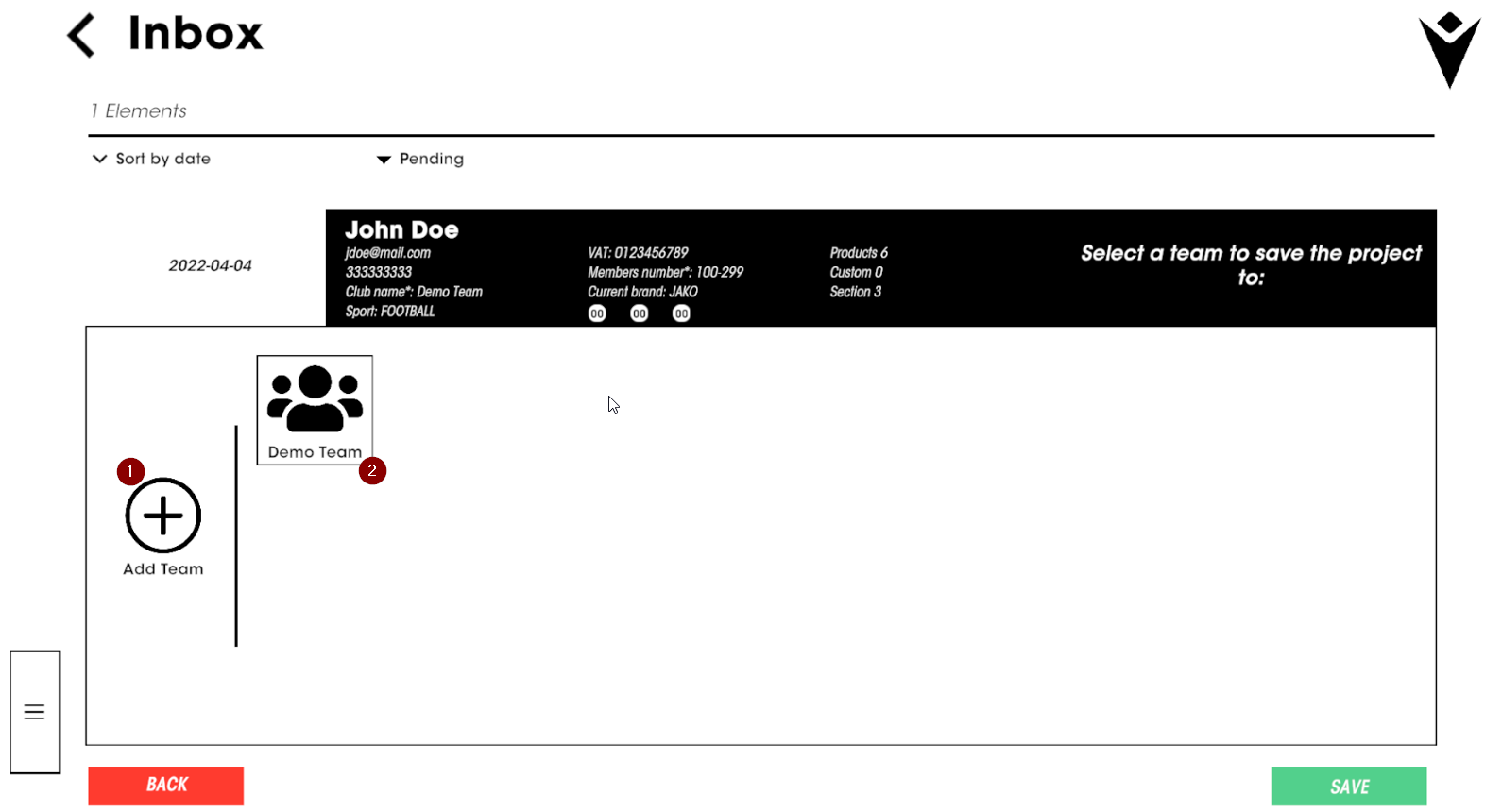
The brochures you want to confirm will be added within new teams (1) or within existing teams (2).
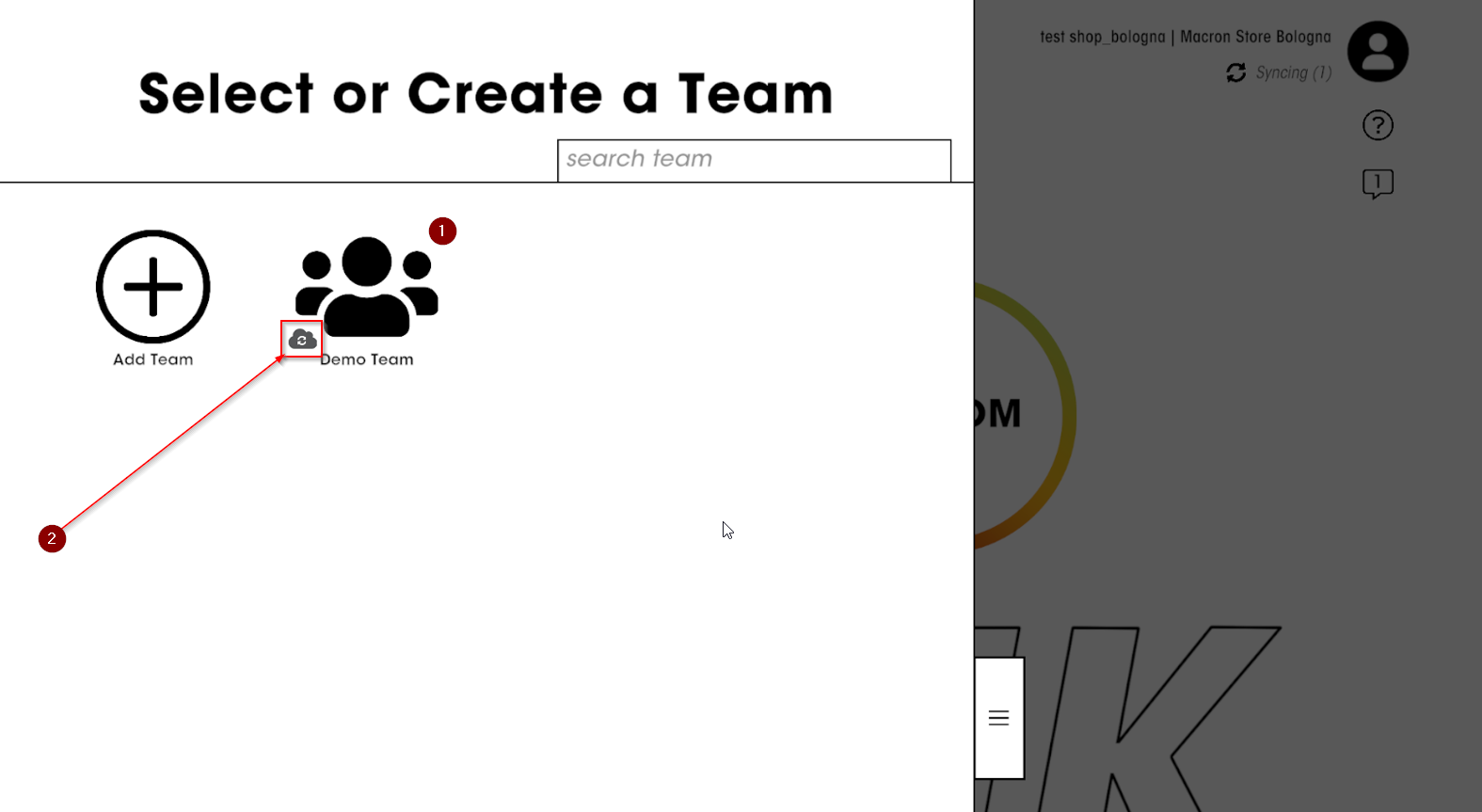
By clicking on the "Save" button, you will find new teams / brochures in your archive (1) and, once the cloud synchronization is complete, you will have the brochure available, along with all the others previously saved, from any device you decide to connect!
Entering personalisation details
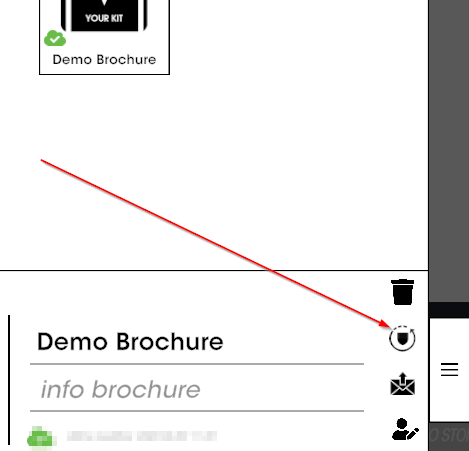
By clicking on the icon on the screen, it is possible to access the section dedicated to the specifications of the processes for each personalisation
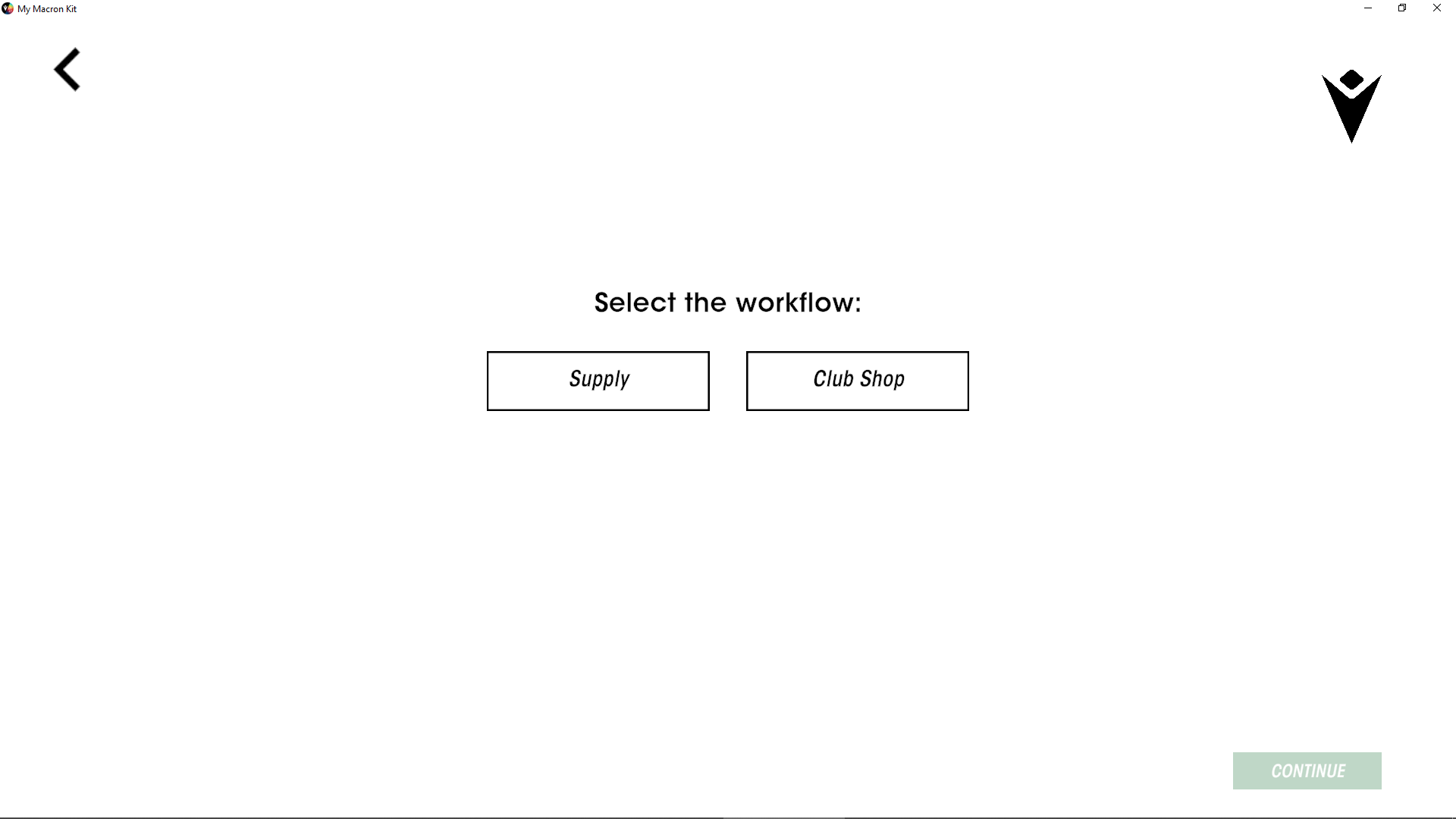
It is possible to choose between two types of processing:
Supply: creation of a brochure aimed at processing a massive order to be sent directly to the club
Clubshop: creation of a brochure aimed at creating an online shop for the club where orders will be placed one by one directly by club members
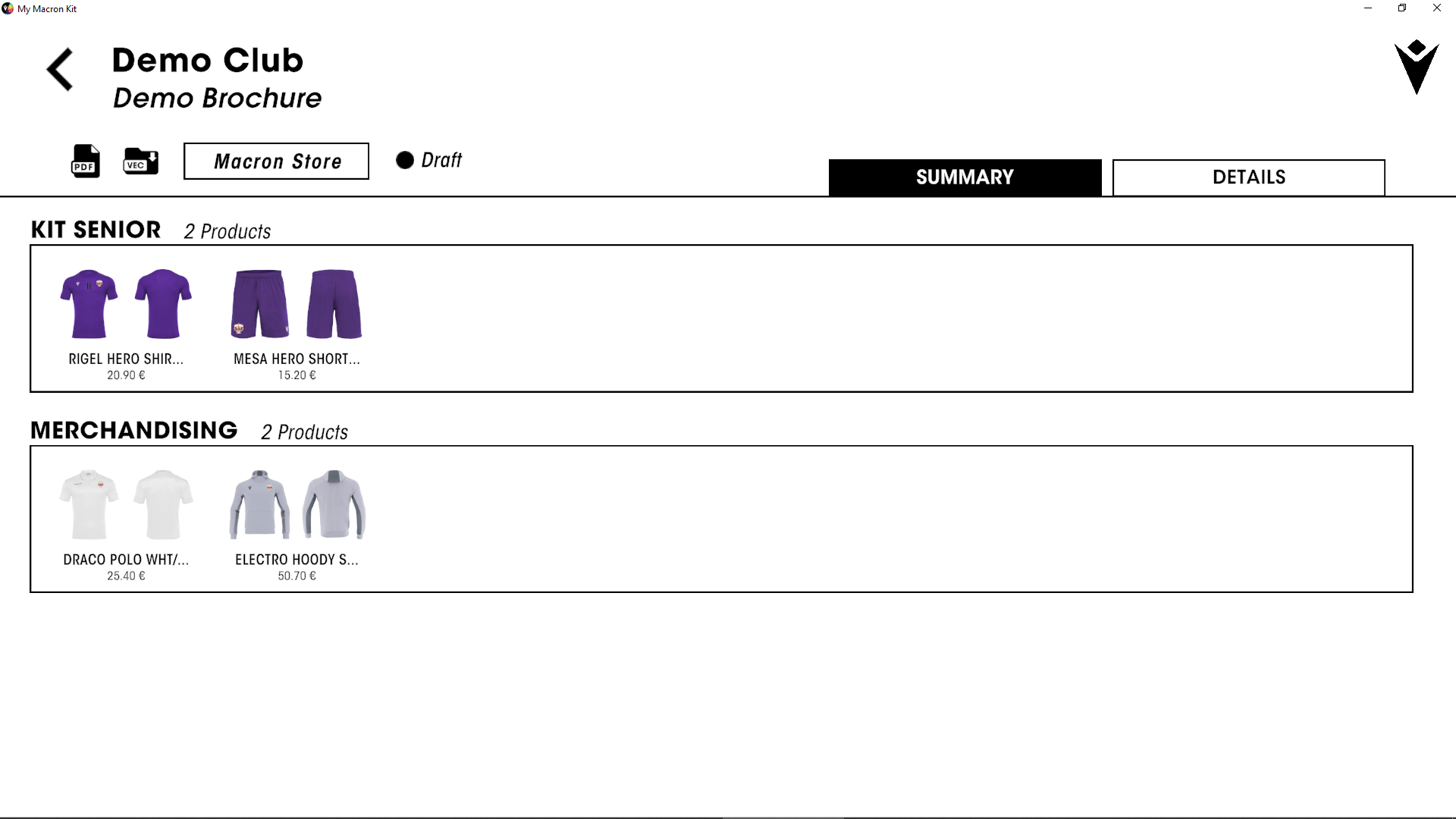
In the summary it is possible to check the sections created and the products added in each section.
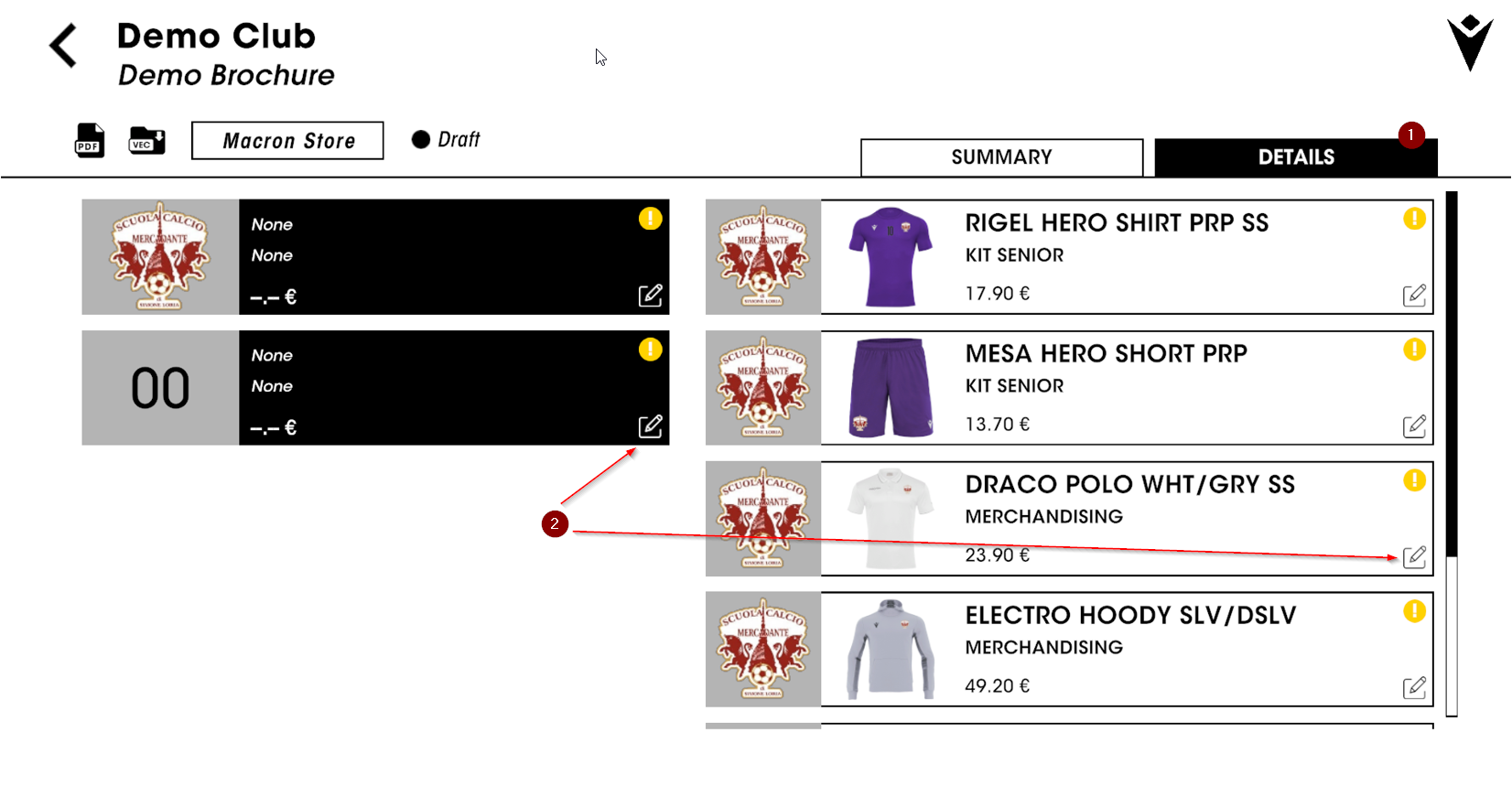
By clicking on details (1) it is possible to add the details relating to each personalisation to the brochure.
The yellow alert on the personalization indicates that not all the details have been added: click on the “edit” icon (2).
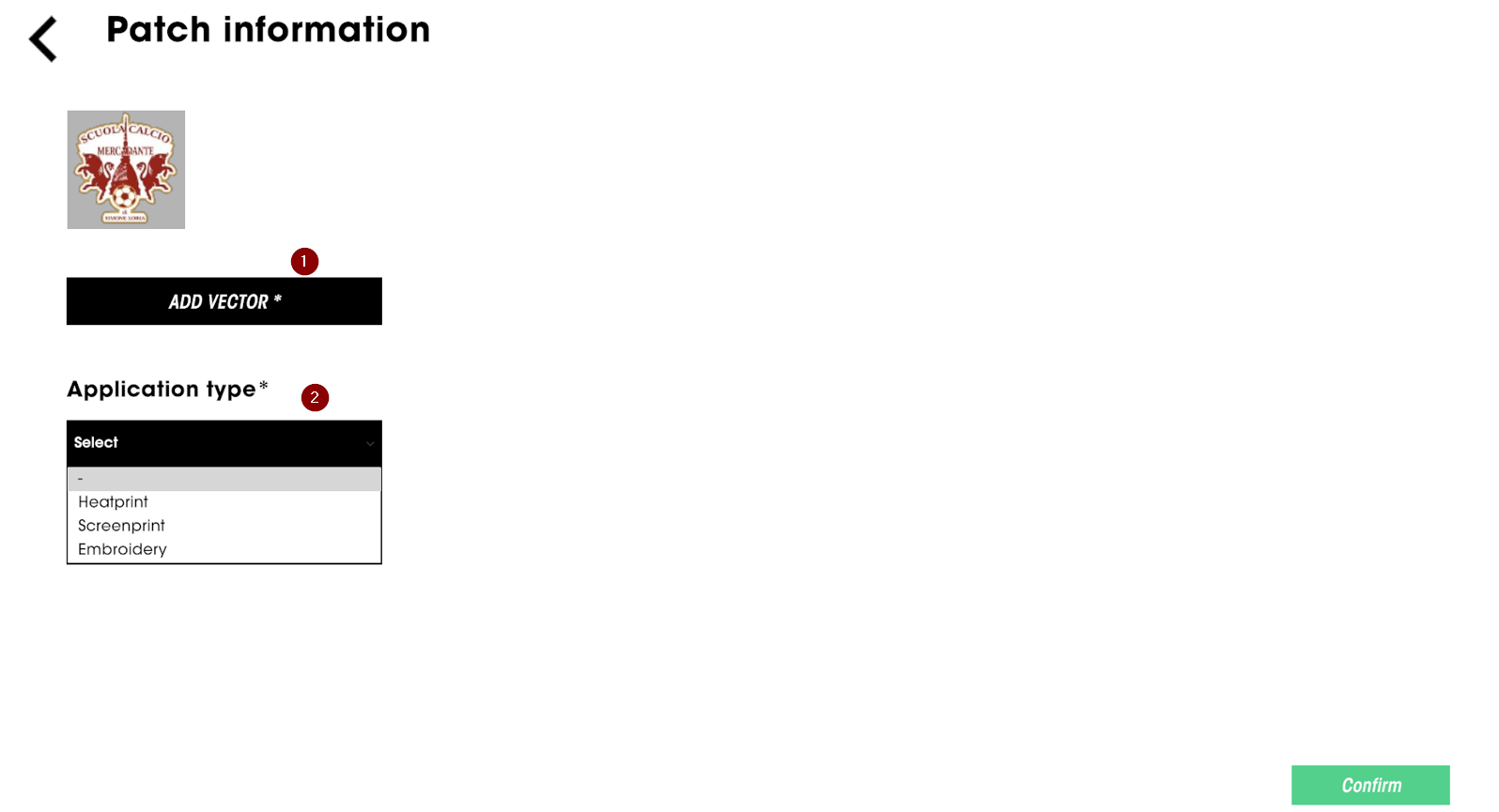
Once you have chosen the personalisation you can proceed with:
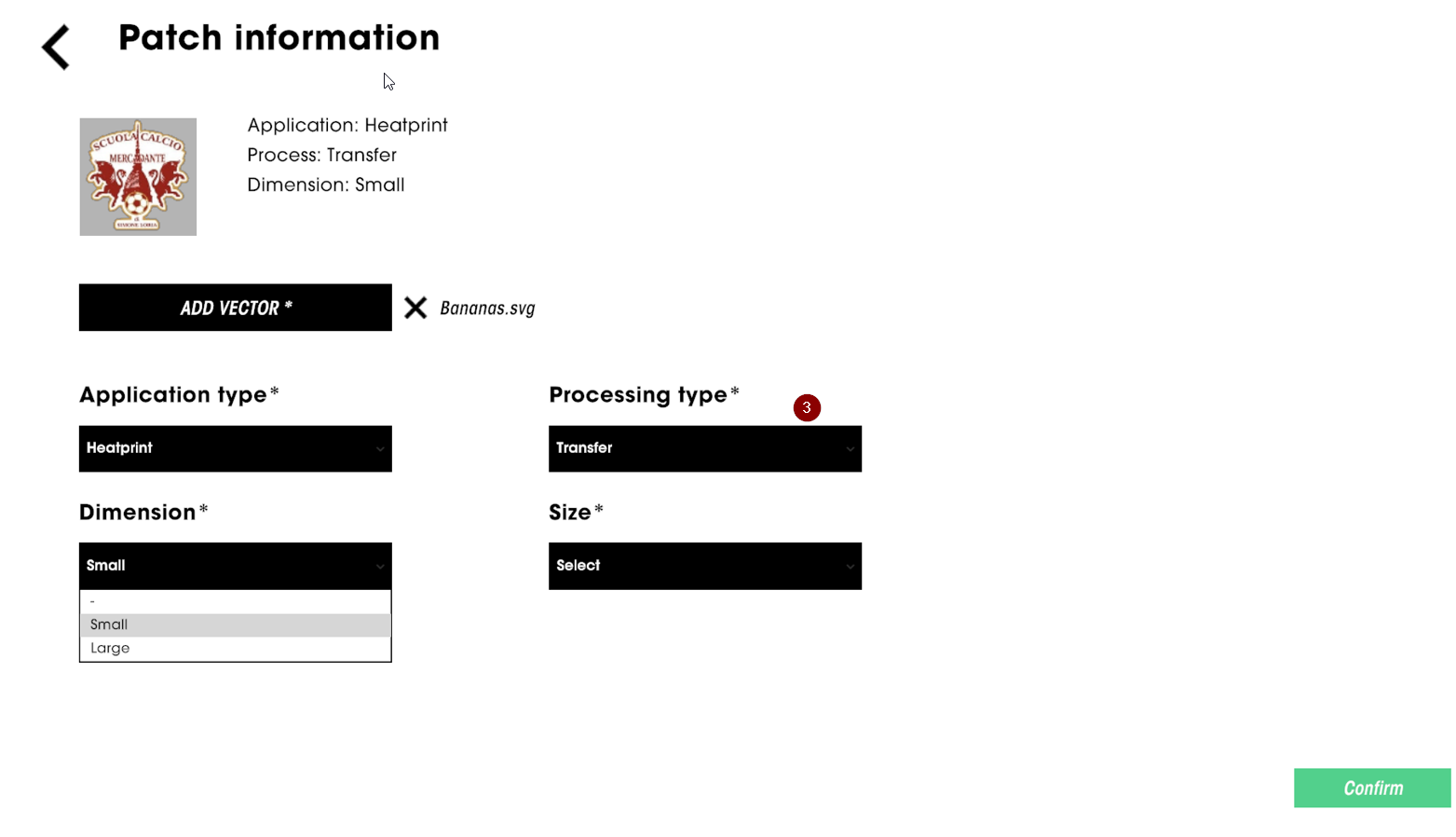
Adding vector files
Choice of the type of personalisation
Choice of the type of personalisation processing
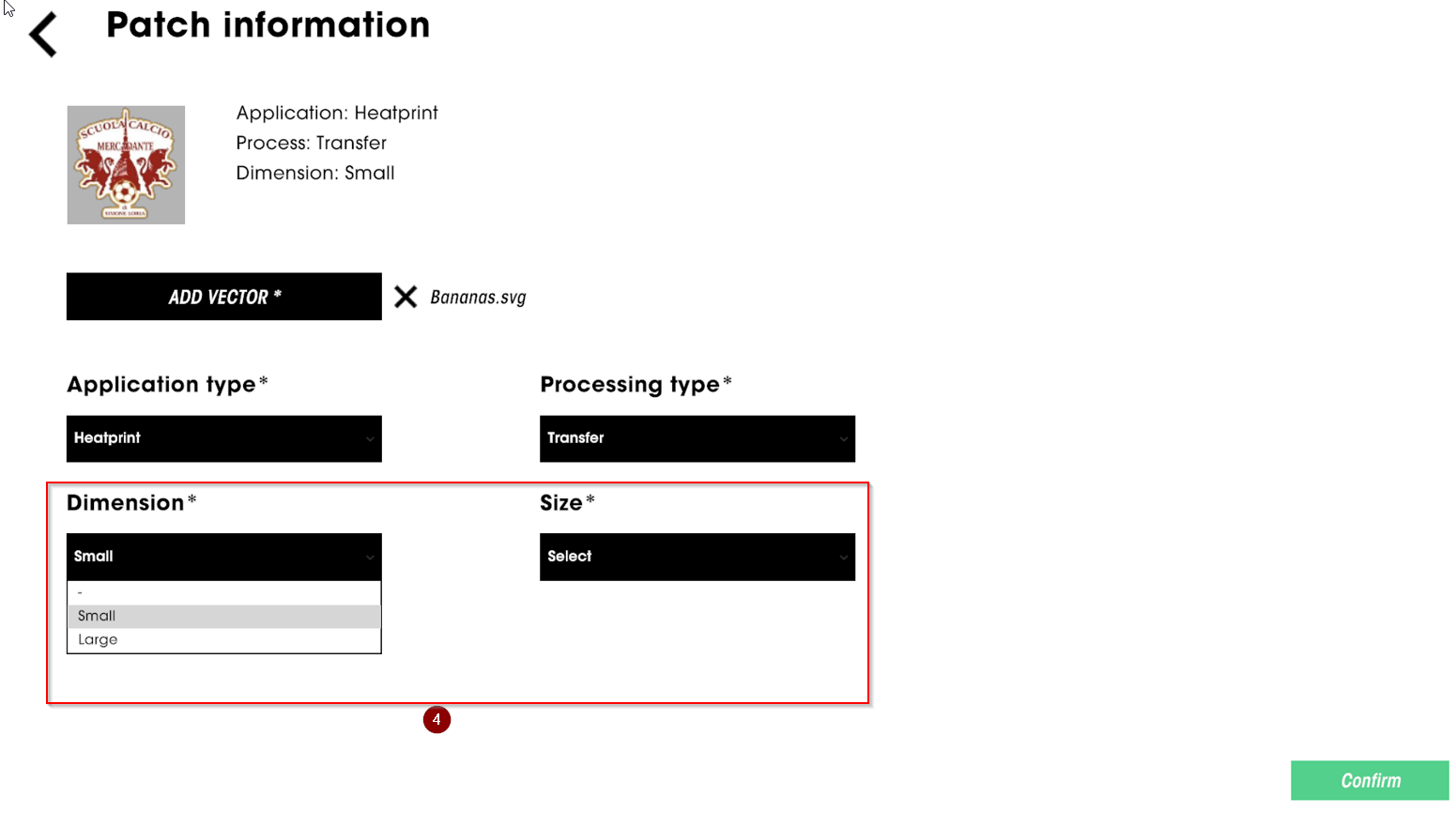
Choice of dimensions and size
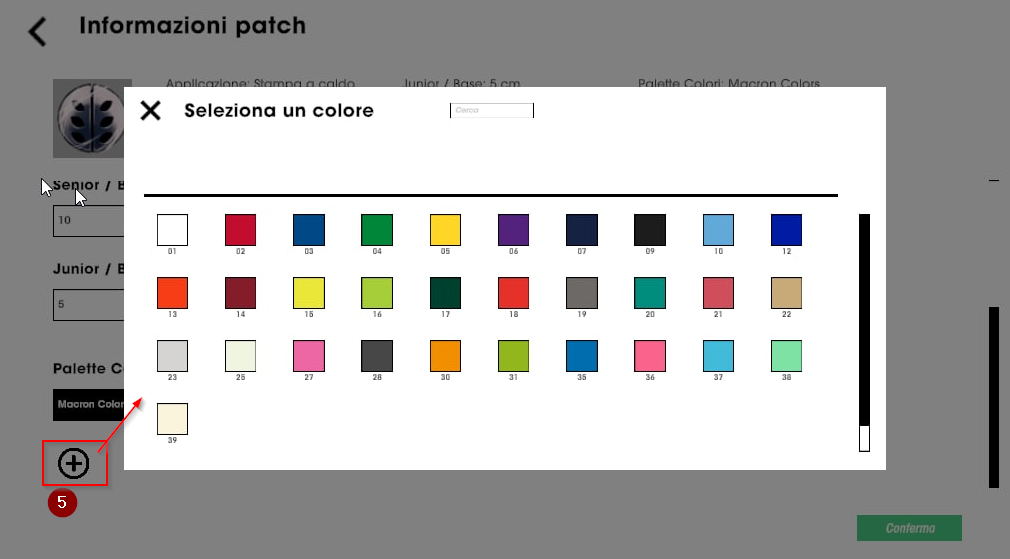
Choice of colors on the personalization, with the possibility of searching for the right color among Macron colors, Pantone C and, in the case of embroidery, among Madeira colors.
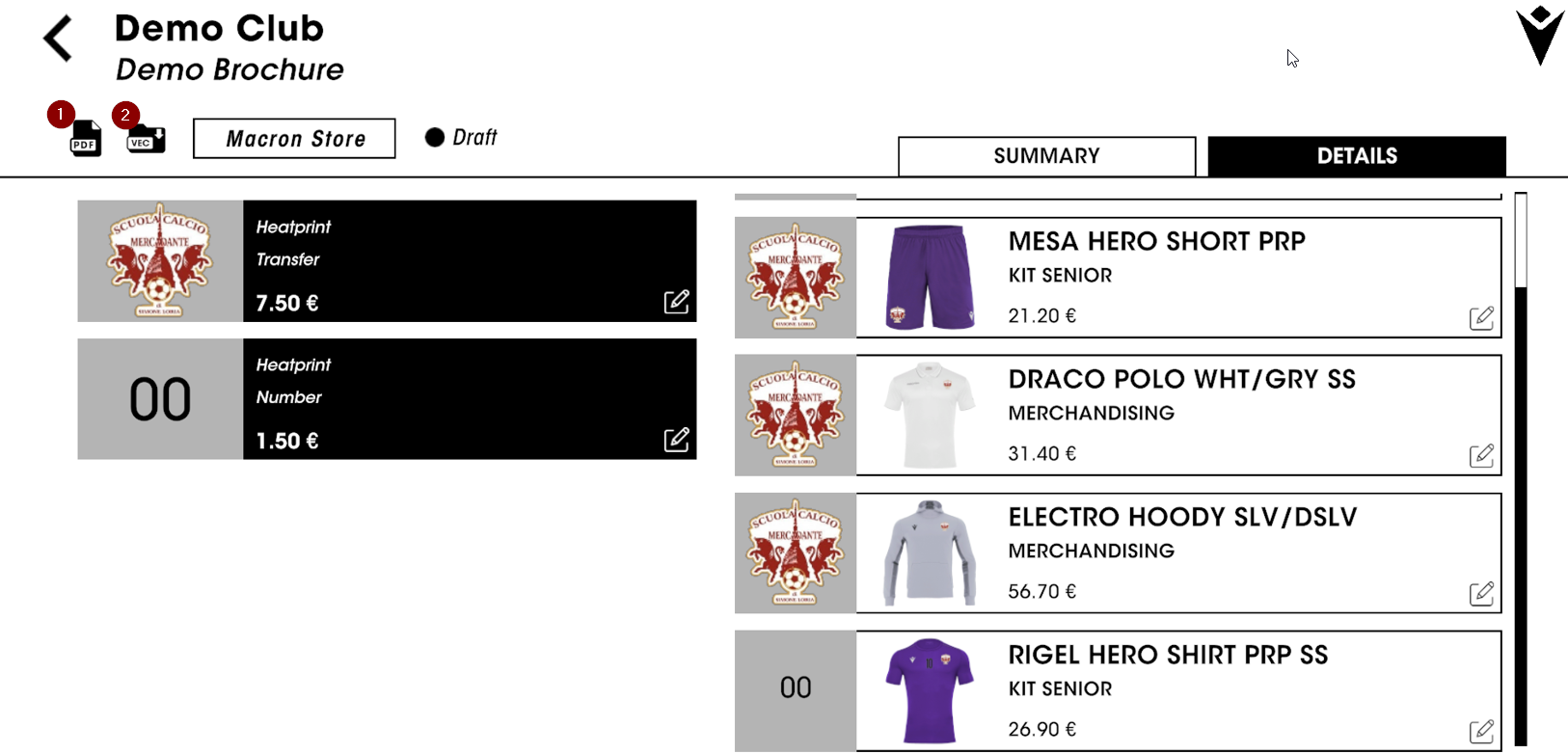
Once all the details for all the personalisation in the brochure have been completed, it will be possible to create the PDFs for the detailed brochure (1) with the specifications entered for each personalisation and also download in the folder all the vector files of the logos inserted during the personalisation definition process (2).
PUBLISHING ON CLUBSHOP
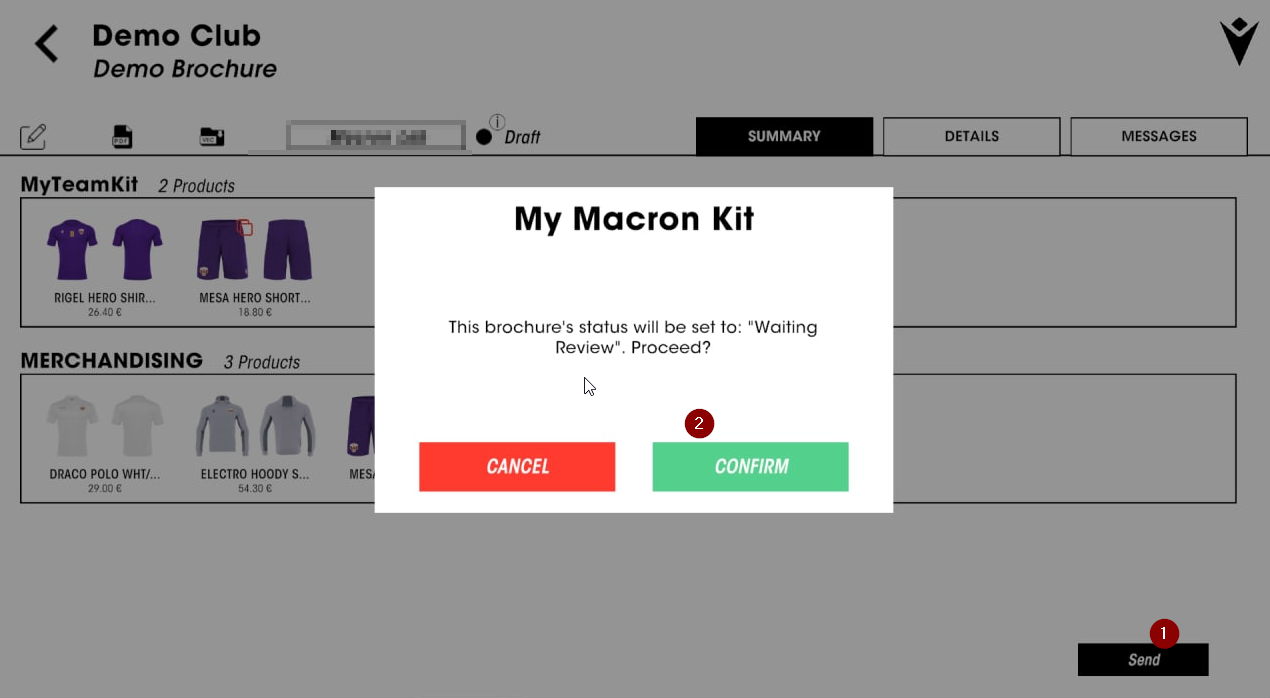
If you wish to publish the brochure on the clubshop.macron.com portal, you can proceed with the first revision step by clicking on the submit button (1) and confirming (2). The brochure will be ready for a final check and then for publication!
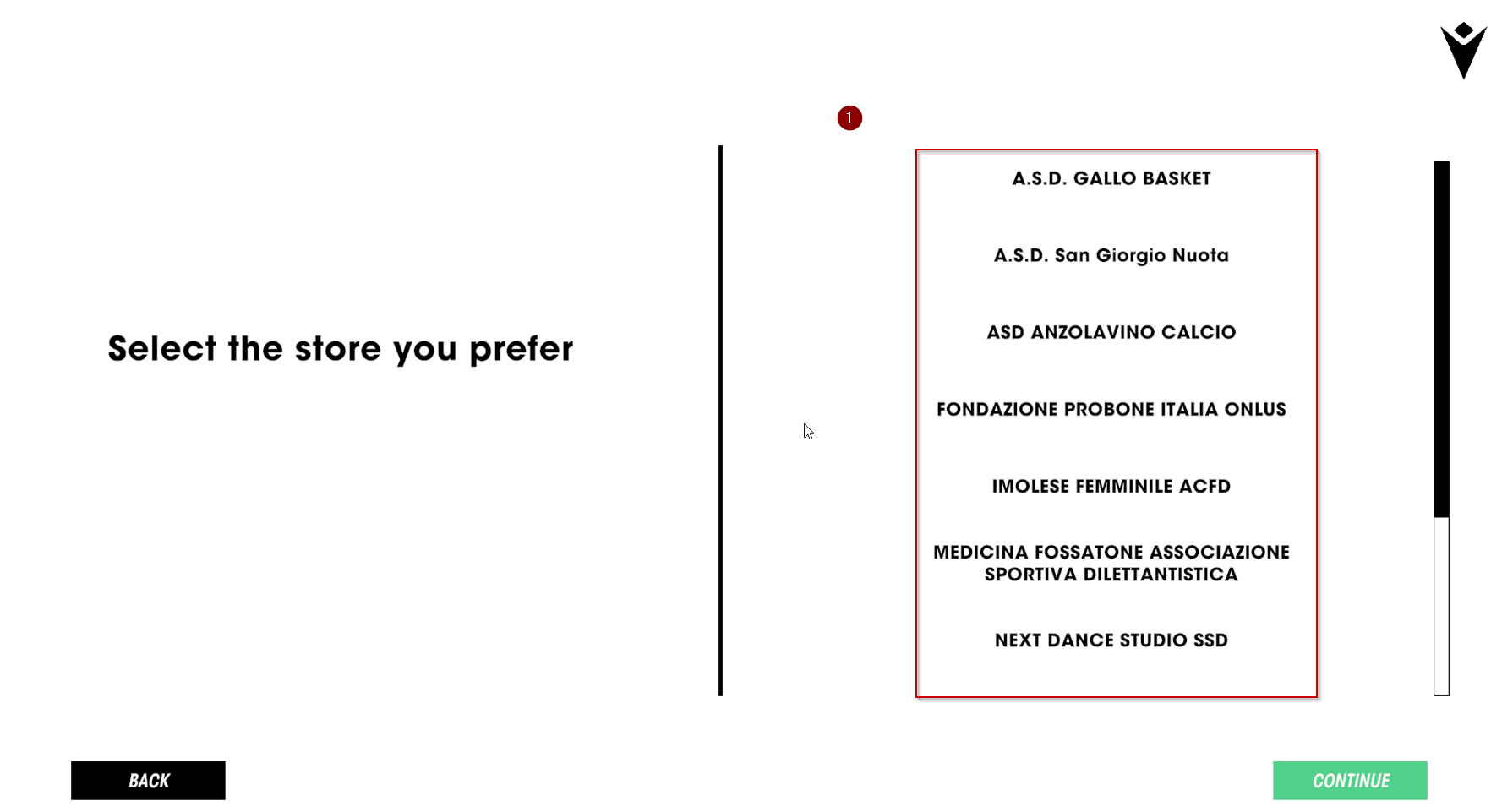
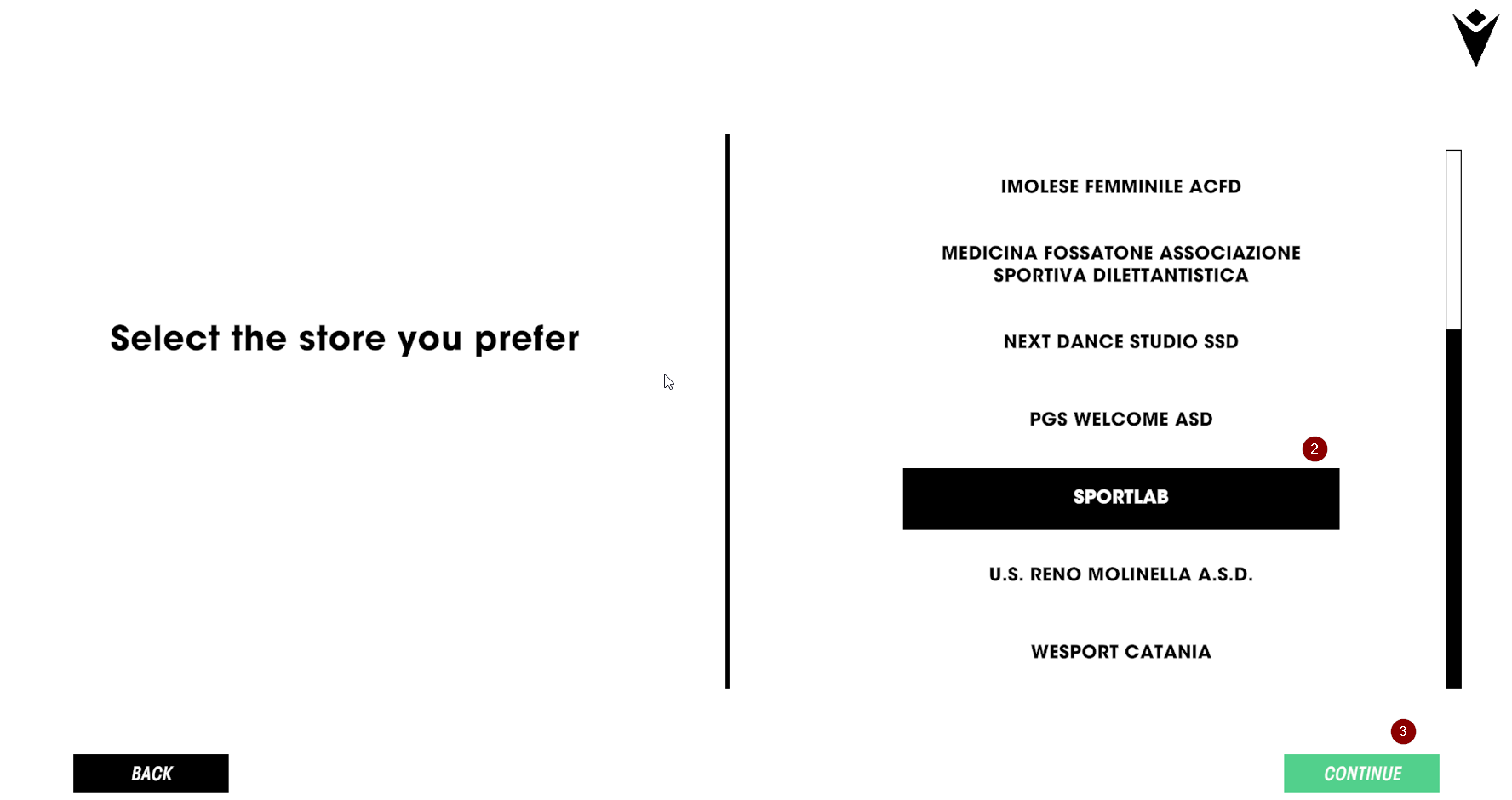
Proceeding with the publication, you will see the screen with the list (1) of clubs already present on the portal clubshop.macron.com from which you can choose the club on which to publish the articles in the brochure. Once you have chosen the club (2), proceed with the publication (3)! N.B: at the moment publication is only possible to clubs that do not yet have articles created on the portal.
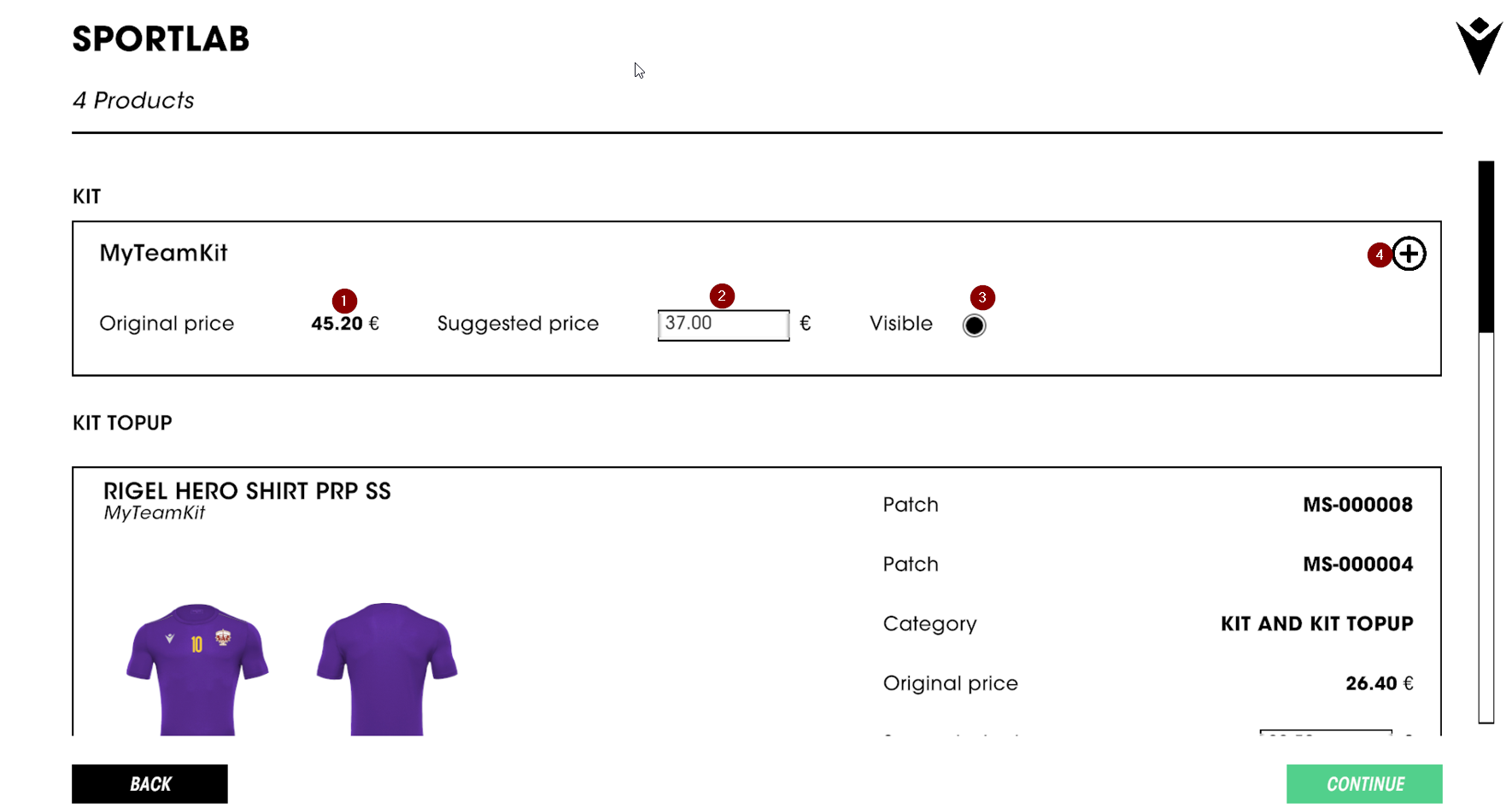
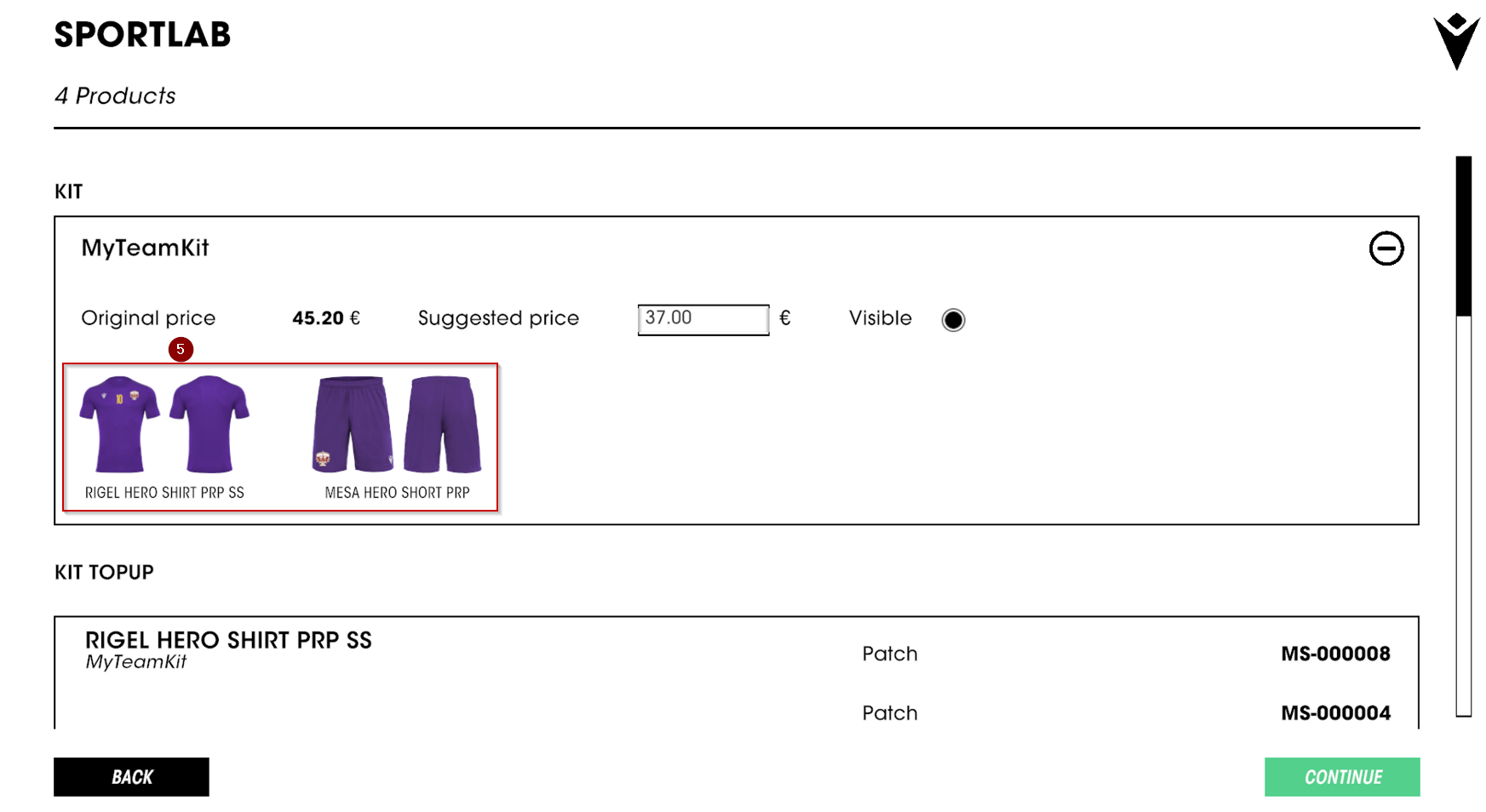
Continuing with the publication, you will access the screen where you can see for each kit the details of the original price (1), suggested price (2), calculated on the discount set on the portal for that category and modifiable, and the visibility (enable visibility now or not on the portal). From the kit box (4) you can view the item details of each individual kit (5)
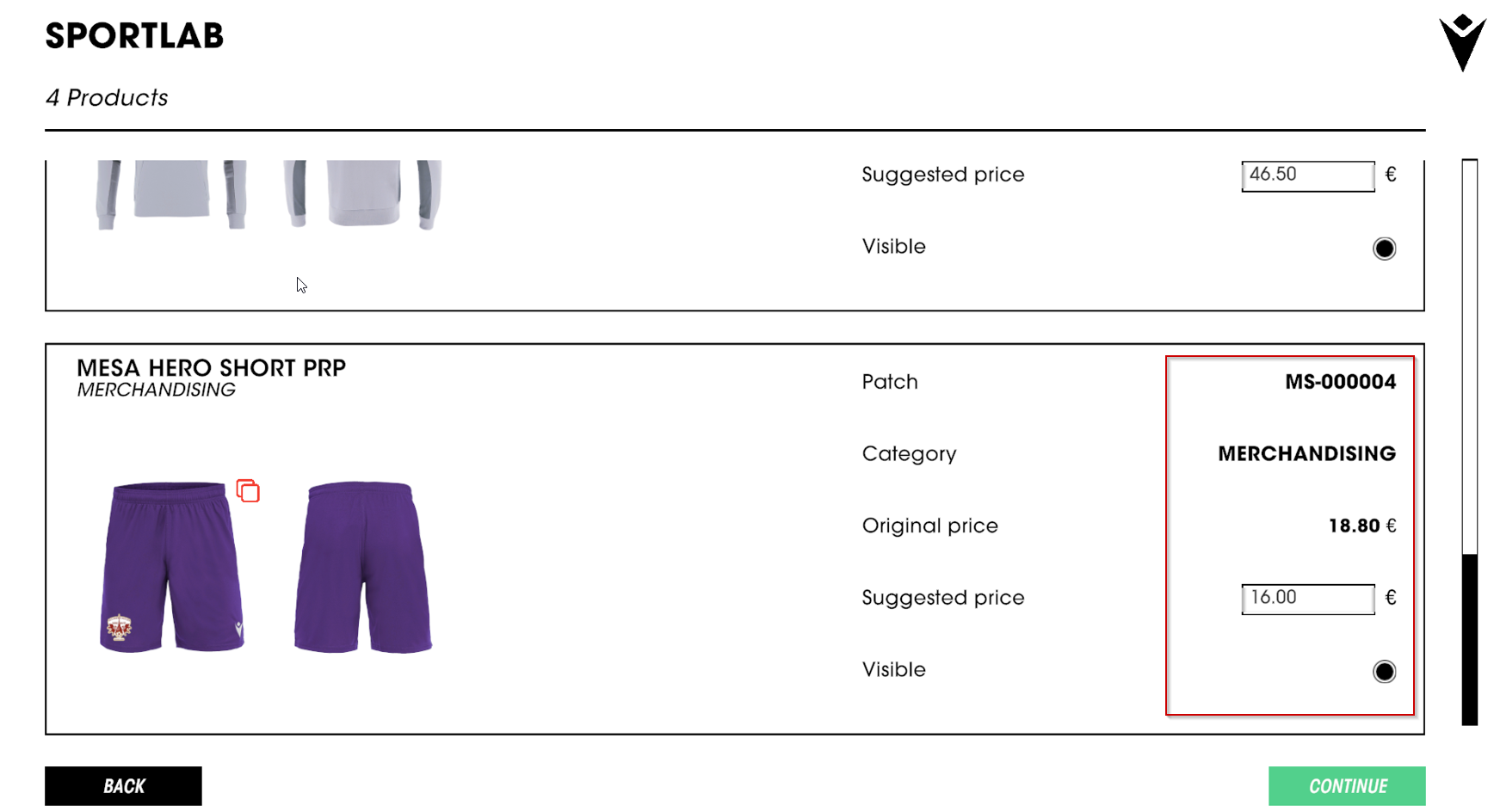
Scrolling down, it is possible to view the individual articles (bulk) in the brochure: the information and actions possible on the bulk are the same as those applicable on the kits, i.e. choice of price and visibility
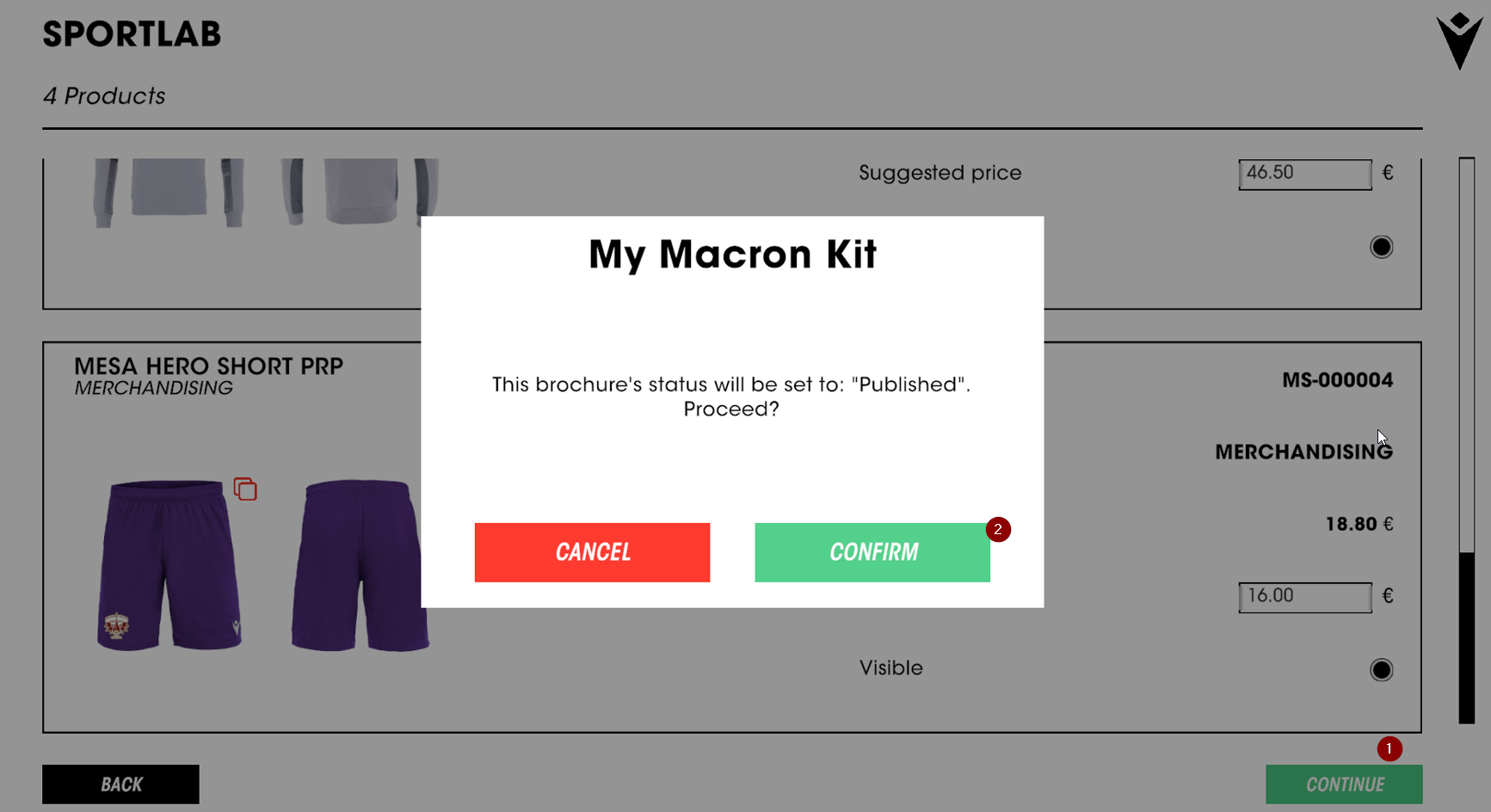
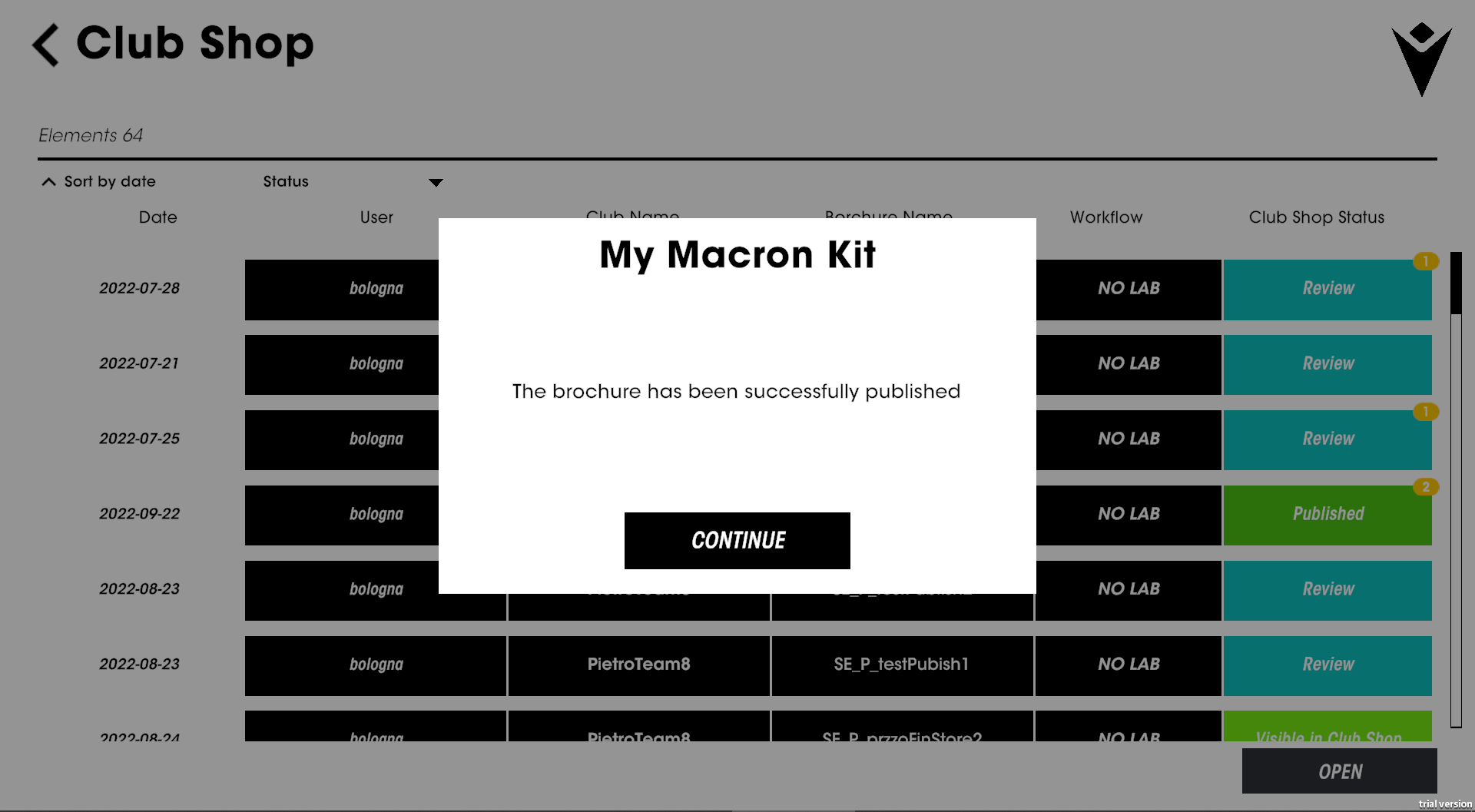
Once all price details have been entered, you can proceed with the publication (1) of the brochure. After the confirmation screen (2), the application will notify you of publication and display the list of brochures.
The newly published brochure will appear in "Published" status
GET AHEAD OF THE CROWD. Subscribe to our newsletter to:
10€ off on your first order when buying at least 50€
New product launches
Special contents created for you
Let's get to know each other betterPersonal information